From Prompt to Production: How AI Icon Generation Works
A look inside IcoGenie's generation pipeline — from text prompt to production-ready SVG, PNG, and JSX components.
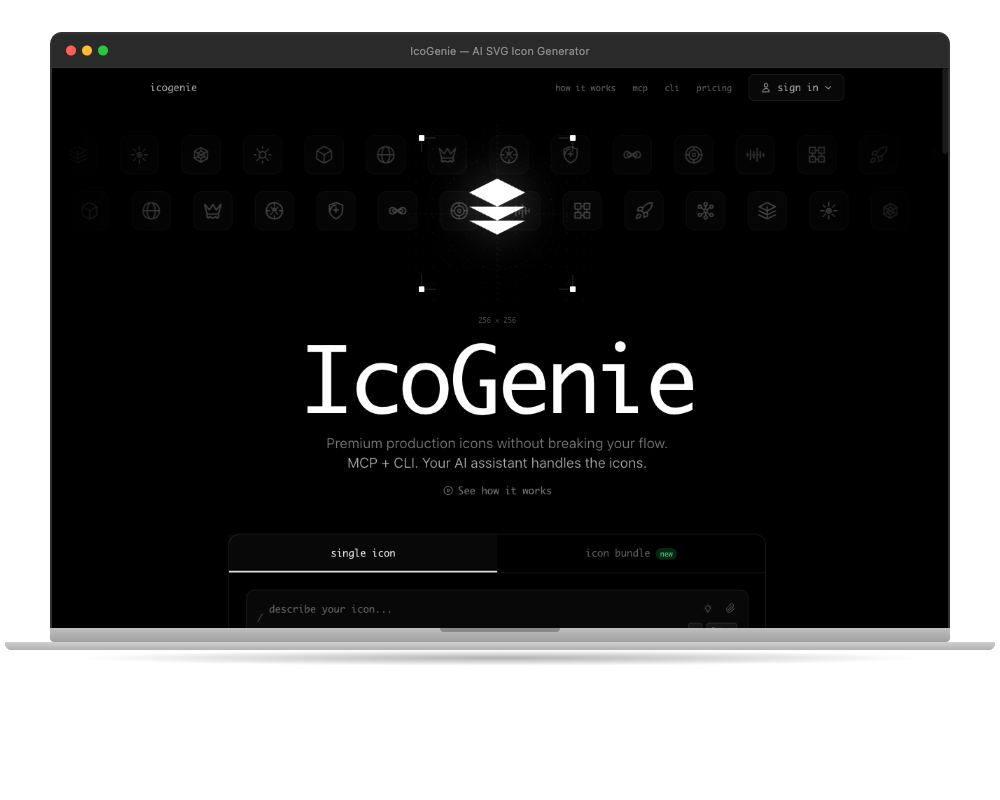
The problem with traditional icon workflows
Finding the right icon for your project usually means one of three things: browsing through thousands of generic icon libraries, hiring a designer, or spending hours in Figma yourself. None of these scale when you need something specific — a "rocket ship launching from a laptop screen" or "a shield with a neural network pattern."
AI icon generation flips this. You describe what you need. You get it back in seconds.
How the pipeline works
IcoGenie uses a multi-stage pipeline to turn your text description into production-ready assets:
1. Prompt compilation
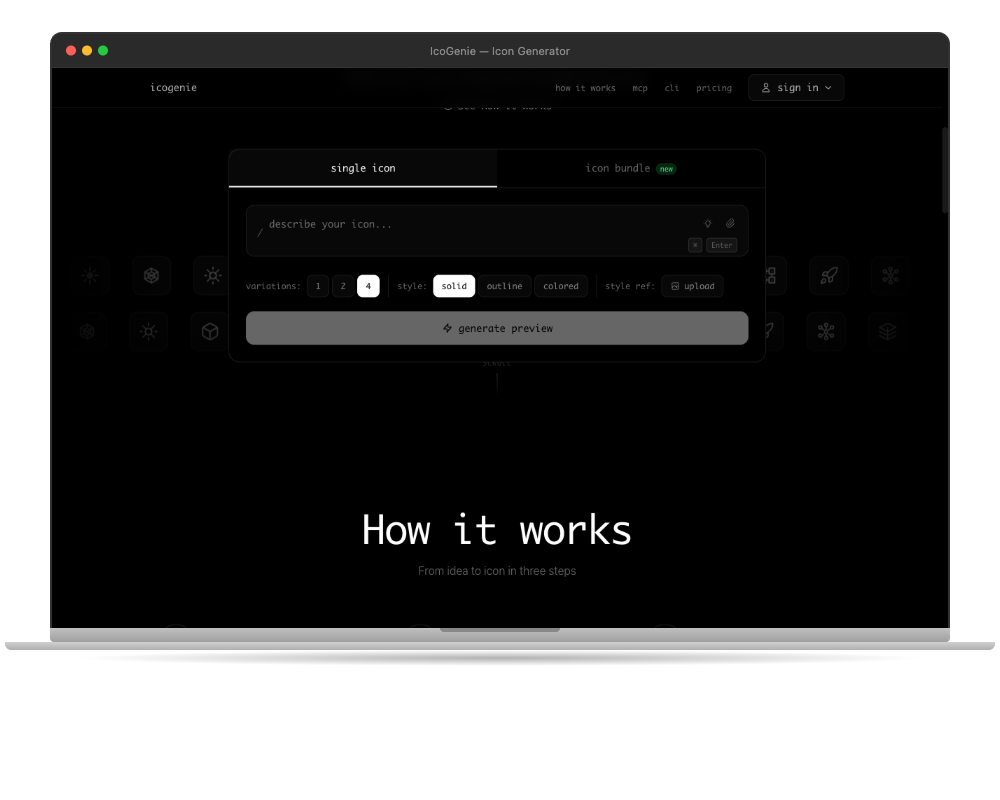
Your natural language description gets compiled into a strict image generation prompt using GPT-4. This step translates vague descriptions into precise visual instructions — specifying style, composition, stroke weight, and background requirements.
Input:  "a rocket ship"
Output: "Minimal solid icon of a rocket ship, centered on canvas,
         black fill on white background, no text, 512x512px..."
The compiler enforces consistency. Whether you write "rocket" or "a sleek rocket launching upward," the output follows the same visual language.
2. Image generation
The compiled prompt goes to Gemini 2.5 Flash, which generates a 512x512 PNG for each variation. You can request 1, 2, or 4 variations per prompt.
Each variation is stored individually, so you can regenerate any single variation without losing the others.
3. Vectorization
This is where the magic happens. The raw PNG gets vectorized into a clean SVG using Recraft's ML-based vectorization. This produces curves and paths that are dramatically cleaner than traditional auto-trace tools like Potrace.
The result is a scalable vector that looks crisp at 16px and 512px alike.
4. Asset packaging
The final download includes everything you need:
- SVG — scalable vector for any size
- PNG — pre-rendered at 16, 32, 192, and 512px
- JSX — a React component with TypeScript types
- HTML meta — favicon snippet ready to paste
Style options
IcoGenie supports three styles:
- Solid — filled icons, like what you'd find in a native app
- Outline — stroke-based icons with consistent line weight
- Illustration — colored icons with gradients and detail
You can also upload a reference image to extract its style. The AI analyzes the reference and applies similar visual characteristics to your new icon.
Using it in practice

The fastest way to try it is on the web at icogenie.xyz. Type a description, pick a style, and generate a preview for 1 credit.
For automation workflows, the CLI and MCP server use the exact same pipeline:
npx @icogenie/cli generate "shield with checkmark" --style outline
Every platform — web, CLI, and MCP — shares the same core generation logic. Same quality, same output, different interface.
What's next
We're working on expanding style options (duotone, hand-drawn), improving bundle consistency, and adding color customization. The generation pipeline is the foundation — every improvement there benefits all platforms simultaneously.
Try IcoGenie and generate your first icon in seconds.